Payment and billing
All payments and billing for Polars Cloud are handled via the AWS Marketplace. This integration provides a secure, streamlined way to manage your subscription, payments, and billing using AWS's trusted marketplace infrastructure.
30-day Free Trial
New organizations get full access to explore Polars Cloud for 30 days. The trial activates automatically when connecting your first workspace to AWS. After the trial you can easily subscribe via the AWS Marketplace.
Pricing
Polars Cloud uses usage-based pricing charged per vCPU hour of compute usage. Billing begins when instances are booted and ready to execute queries, and ends when users stop the instances or when we detect instances have been terminated externally. Instance startup time and shutdown time after stopping are not charged.
Subscribe to Polars Cloud
Subscribing consists of two parts: subscribing to Polars Cloud on the AWS Marketplace, and linking that subscription to your Polars Cloud organization. Both are required: a subscription that is not linked to an organization does not activate Polars Cloud.
Before you start, make sure you have:
- An AWS account with permission to subscribe to AWS Marketplace products. This requires the
aws-marketplace:SubscribeIAM action, which is included in the AWS managed policyAWSMarketplaceManageSubscriptions. - Admin access to the Polars Cloud organization you want to subscribe.
Step 1: Subscribe on AWS Marketplace
- Open the
Polars Cloud listing on AWS Marketplace.
You can also get there via the
Billingpage in your Polars Cloud organization, or by searching for "Polars Cloud" directly in AWS Marketplace. - Click View purchase options.
- Review the pricing dimensions and click Subscribe.
AWS may show the subscription as pending for a few minutes while it processes the agreement.
Step 2: Link the subscription to your organization
After subscribing, AWS Marketplace shows a banner stating "You've already accepted this offer" with a Set up your account button. This button links your new AWS Marketplace subscription to your Polars Cloud organization.
Subscribing alone does not activate Polars Cloud
You must click Set up your account to link the subscription to your Polars Cloud organization. If you skip this step, your organization will keep showing "Organization is not subscribed. Visit the AWS Marketplace to setup your subscription." even though the subscription is active on the AWS side.

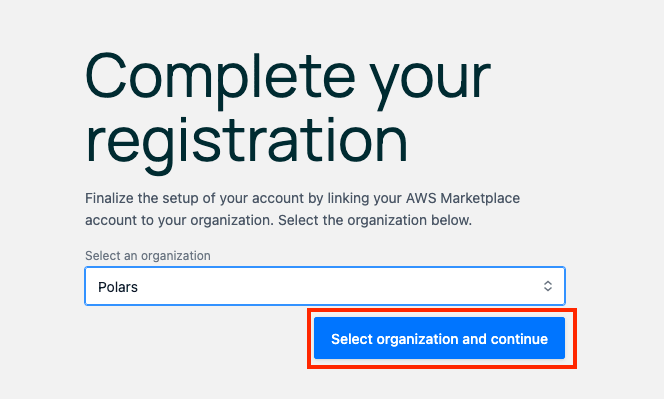
Clicking Set up your account redirects you to the "Complete your registration" page in Polars Cloud. Sign in with your Polars Cloud account if prompted, then select the organization you want to link the subscription to and click Select organization and continue.
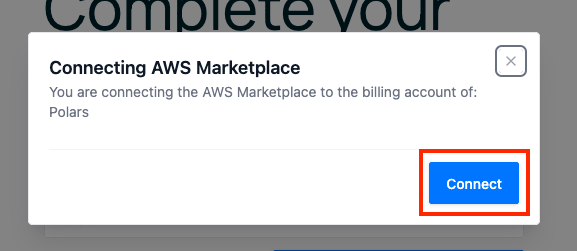
Finally, confirm the connection by clicking Connect in the dialog.
Verify the connection
After linking, you'll be redirected to the Polars Cloud organization dashboard. Under Billing, the
status will update to show "Organization is subscribed."
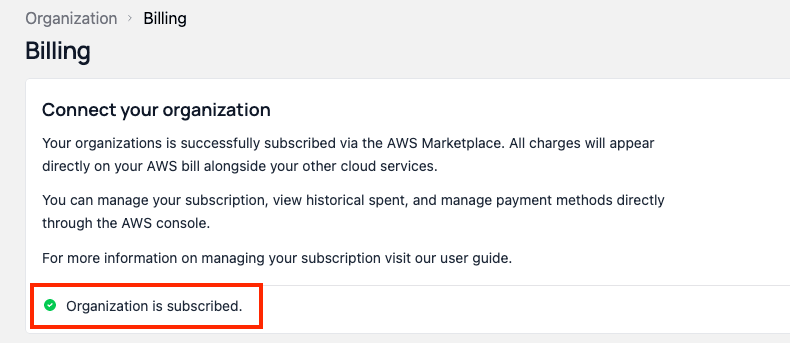
This typically completes within minutes, though allow up to an hour for status propagation. If the status doesn't update after an hour, contact our support team at [email protected].
Missed the "Set up your account" button?
If you closed the confirmation page before clicking Set up your account, you can return to it at any time. AWS generates a fresh setup link on every visit, so re-doing this step is always safe:
- Sign in to the same AWS account that subscribed to Polars Cloud.
- Open the AWS Marketplace console and go to Manage subscriptions.
- Find the Polars Cloud subscription and click Set up product.
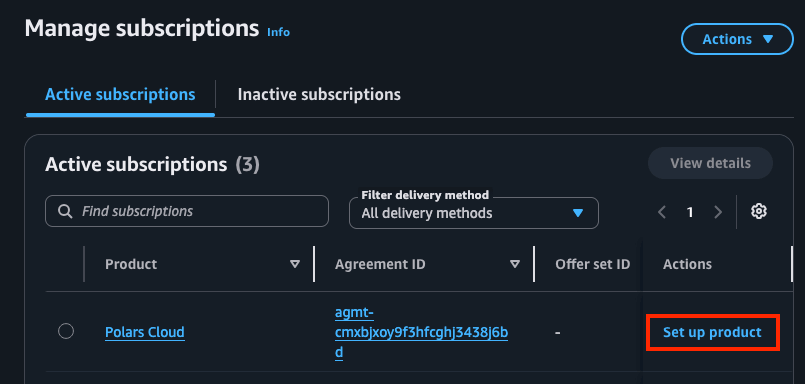
From there, follow the steps under Step 2 to link the subscription to your organization.
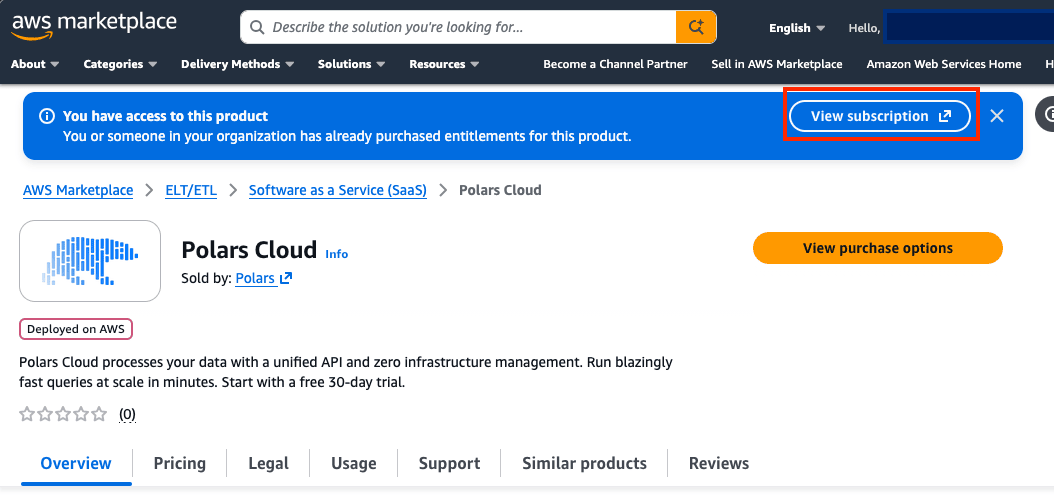
Alternatively, revisit the Polars Cloud listing on AWS Marketplace. A banner will show "You have access to this product". Click View subscription to get back to the account setup.
Troubleshooting
"Organization is not subscribed. Visit the AWS Marketplace to setup your subscription."
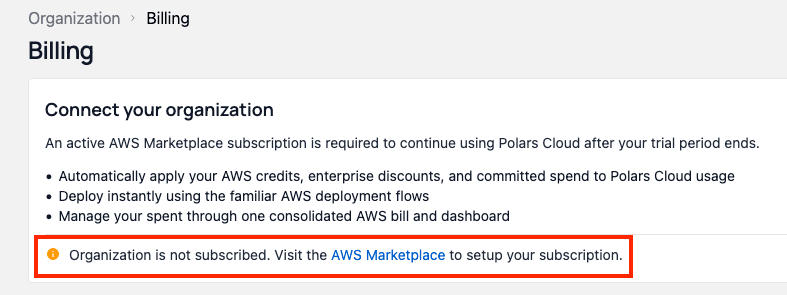
Your AWS Marketplace subscription exists but hasn't been linked to your Polars Cloud organization. Follow the steps under Missed the "Set up your account" button?.
The billing status doesn't update after linking
New subscriptions require propagation time on the AWS side. Allow up to an hour, then contact [email protected] if the status still hasn't updated.
The AWS Marketplace listing says "You are currently subscribed" but my organization shows as unsubscribed
Someone else in your AWS account may have already subscribed and linked the subscription to a different Polars Cloud organization. Check with your team which organization is linked, or contact [email protected].
I can't subscribe on AWS Marketplace
Your AWS user is likely missing marketplace permissions. Ask your AWS administrator to grant the
AWSMarketplaceManageSubscriptions managed policy (or the aws-marketplace:Subscribe action).
Request and Accept Private Offers
Customers with large-scale analytics workloads or enterprise customers requiring custom pricing, annual commitments, or specific terms can contact our team for a private offer. Reach out to the team at [email protected].
Cost and Usage Monitoring
All up to date data about Polars Cloud usage and costs can be found in the AWS Cost Explorer. You can find more information about usage per workspace in the Polars Cloud dashboard.
Manage Your Subscription
Cancelling Your Subscription
Cancel through the AWS Marketplace subscription management interface.
Important: Unsubscribing will instantly stop all active queries in your organization. Ensure no critical workflows are running before cancelling.
Reactivate Subscription
After cancelling your subscription, you can still access Polars Cloud but no workflows can be
started. You can easily reactivate the subscription following the steps on the Billing page in
Polars Cloud or via the AWS Marketplace.